Rootless Podman Containers In Proxmox With Terraform And Ansible
Intro
As the new year begins I wanted to share a project I've been working on these past few weeks. Over the years I've worked with Terraform, Ansible, and VMware but Proxmox was always something I wanted to spin up in a home lab environment. This article DOES NOT cover installing Proxmox and setting up a basic environment but the Proxmox documentation does a good job of walking through the installation.
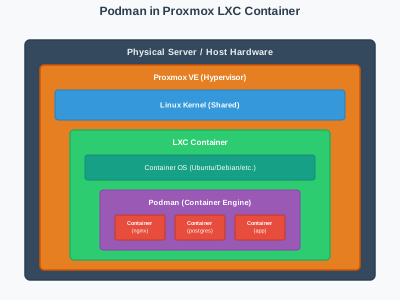
LXC and Rootless Podman
Two of the great advantages of Podman when compared to Docker are: That it's daemonless, and that it can run without root privileges. LXC is a project integrated with Proxmox that allows for the deployment of system containers. I learned that while System and Application Containers share some similarities like a small footprint they have some key differences, see this link for a detailed comparision. For me, this presented an oppurtunity to try and install Podman inside one of an LXC (not something you would do in a high-stakes production environment).
Starting with Terraform/OpenTofu
Starting with Terraform/OpenTofu, I created my main.tf, variables, and tfvars files. I used the Telmate Proxmox Provider and the LXC resource in my main.tf file and defined my variables.
This is my project structure:
.
├── main.tf
├── terraform.tfstate
├── terraform.tfvars
└── variables.tf
And this is my main.tf:
{
required_providers {
    proxmox = {
    source  = "Telmate/proxmox"
    version = "3.0.2-rc07"
    }
}
}

provider "proxmox" {
pm_api_url = "https://${var.proxmox_node}:8006/api2/json"
}


resource "proxmox_lxc" "guacamole" {
vmid         = var.container_id
hostname     = var.container_hostname
target_node  = var.proxmox_target_node
ostemplate   = "local:vztmpl/${var.container_template}"
password     = var.container_password
unprivileged = var.container_privs
cores        = var.container_cores
memory       = var.container_ram
swap         = var.container_swap
start        = var.container_start


rootfs {
    size    = var.container_rootfs_size
    storage = var.container_rootfs_storage
}


mountpoint {
    key     = var.container_mount_key
    slot    = var.container_mount_slot
    size    = var.container_mount_size
    storage = var.container_mount_storage
    mp      = var.container_mount_directory
}

network {
    name   = var.container_network_interface
    bridge = var.container_network_bridge
    ip     = "${var.container_network_ipv4}/${var.container_network_cidr}"
    gw     = var.container_network_gateway
}

features {
    fuse    = true
    nesting = true
}
}
On Authentication to Proxmox
Instead of setting a username and password in my file I'm setting environment variables as outlined in the provider documentation
If you're using Linux or MacOS you can run this in your shell session:
export PM_API_TOKEN_ID=token_id_here && export PM_API_TOKEN_SECRET=secret_string_here
Some things to note in main.tf:
-
you need to define a "rootfs" block or the LXC will crash
-
For my setup I have a seperate mountpoint for data at /data
-
the features block is needed if you want to run rootless podman containers in an LXC
-
I am using vars for almost everything here, if you want to replace the vars with hard-coded values the documentation I referenced aboves goes through that in detail
Deploying to Proxmox
Once you have you variables defined and set in variables.tf and the tfvars file make sure to run terraform init in the directory with your files.
Run terraform plan here to verify that the features block has the fuse and nesting options set to true (I have removed the full plan output for brevity):
tofu plan

OpenTofu will perform the following actions:

    + features {
        + fuse    = true
        + keyctl  = false
        + mknod   = false
        + nesting = true
        }
Once the changes have been verified you can run terraform/tofu apply to deploy the LXC.
Deploying Podman with Ansible
After the LXC has been deployed we can move on to Ansible. One requirement is that you need to have the Containers.Podman Ansible collection installed on your control node (im my case, my laptop).
This module is not included with the ansible-core package but it is included with the ansible package so I would advise either installing the ansible package or installing the indivual collection with ansible-core. Either way once the collection is installed we can play with Podman!
For this project I will be installing two containers: - An app called Semaphore UI a UI for Ansible, Terraform, Bash, Python, etc - And a postgresql v18 instance as storage for Semaphore
In my playbook I started by installing podman, creating two data directories for my mount points and creating a dedicated network for the pods:
- name: Deploy SemaphoreUI
  hosts: semaphore

  tasks:
    - name: Install Podman
      ansible.builtin.dnf:
        name: podman
        state: present

    - name: Create data directory for Semaphore
      ansible.builtin.file:
        path: /data/semaphore
        state: directory
        mode: '0755'

    - name: Create data directory for postgres
      ansible.builtin.file:
        path: /data/pgsql
        state: directory
        mode: '0755'

    - name: Create Podman network
      containers.podman.podman_network:
        name: semaphore_network
        state: present
Then I defined the postgres container and passed required environment variables for postgres in the container:
- name: Create postgres container
  containers.podman.podman_container:
    name: postgres
    image: docker.io/postgres:18-alpine
    state: started
    network: semaphore_network
    volumes:
      - /data/pgsql:/var/lib/postgresql/18/docker
    env:
      POSTGRES_USER: "{{ postgres_user }}"
      POSTGRES_PASSWORD: "{{ postgres_password }}"
      POSTGRES_DB: "{{ postgres_db }}"
The volumes section here is optional but since I have mounts for persistent storage I defined a volume mapping above.
This next part is important if you want your containers to persist through a reboot. Using the ansible podman collection we can generate a systemd unit file from a pod. In my case I used the podman_generate_systemd module
I then used the builtin systemd module to start and enable the service:
- name: Generate systemd unit file for postgres container
  containers.podman.podman_generate_systemd:
    name: postgres
    new: true
    no_header: true
    dest: /etc/systemd/system

- name: Ensure postgres container is started and enabled
  ansible.builtin.systemd:
    name: container-postgres
    daemon_reload: true
    state: started
    enabled: true
After this we can define our semaphore container:
- name: Deploy Semaphore container
  containers.podman.podman_container:
    name: semaphore
    image: docker.iosemaphoreui/semaphore:v2.16.47
    state: started
    requires: postgres
    network: semaphore_network
    ports:
      - "3000:3000"
    volumes:
      - /data/semaphore:/var/lib/semaphore
    env:
      SEMAPHORE_DB_USER: "{{ postgres_user }}"
      SEMAPHORE_DB_PASS: "{{ postgres_password }}"
      SEMAPHORE_DB_HOST: postgres
      SEMAPHORE_DB_DIALECT: postgres
      SEMAPHORE_DB_NAME: "{{ postgres_db }}"
      SEMAPHORE_ADMIN: "{{ semaphore_admin }}"
      SEMAPHORE_ADMIN_PASSWORD: "{{ semaphore_admin_pass }}"
      SEMAPHORE_ADMIN_NAME: "{{ semaphore_admin_name }}"
      SEMAPHORE_ADMIN_EMAIL: "{{ semaphore_admin_email }}"
Similar setup to postgres but I added "requires: postgres" to ensure this is only created once the postgres container is up and running. Also there are a number of config variables that are needed for Semaphore included the connection to the database.
After this we will create a systemd service, start, and enable is as we did for postgres: :::yaml - name: Generate systemd unit file for semaphore container containers.podman.podman_generate_systemd: name: semaphore new: true no_header: true dest: /etc/systemd/system
- name: Ensure semaphore container is started and enabled
  ansible.builtin.systemd:
    name: container-semaphore
    daemon_reload: true
    state: started
    enabled: true
I have my variables and sensitive information stored in an ansible vault so once I was ready I ran my playbook command:
ansible-playbook --vault-password-file .vault_pass.txt main.yml -i hosts.yml
Once the play completed I was able to verify and log into my new semaphore instance.